A small AI video budget is spent on credits, retries and allowances, not on a plan's headline price. This shortlist ranks five self-serve tools by what a usable clip really costs a solo marketer or a team of up to five people.
These picks apply to short marketing and social clips made on self-serve plans, where a few dozen generated clips a month is a realistic volume. Credit costs vary by model, resolution and clip length, and vendors can change them, so treat the per-clip arithmetic below as a planning guide rather than a fixed price.
How We Chose These Tools
Most businesses already make video, and 63% of video marketers in Wyzowl's 2026 survey of 266 respondents have used AI video tools, so the useful question is which tool turns a small monthly budget into the most usable clips. The same survey found that 24% of marketers who do not use video say it is too expensive, which is why this ranking starts from cost rather than features.
This shortlist covers AI video generation tools that a small team can actually run on a tight monthly budget.
Inclusion bar: A tool made the list only if a small team can buy it on a self-serve plan without talking to sales, it generates AI video, and its vendor publishes credit or allowance rules. Canva, Pika, InVideo, VEED and CapCut all meet that bar, so all five are ranked.
Each tool is ranked on how far a small budget goes, judged on five criteria:
- The meter that sets spend, whether an allowance, credits per model, credits per second or credits per generation
- What one short clip consumes on that meter
- Whether failed takes are charged and whether unused credits roll over
- Free-plan limits for business use, including watermarks and licences
- Fit for one to five people without a video team
Credit costs change by model and vendor, and the ranking does not score visual quality. A reader who needs the best-looking footage should judge sample output alongside the cost figures here.
AI Video Tools For Small Budgets Comparison
Canva, Pika, InVideo, VEED and CapCut all sell AI video on self-serve plans, but each meters spend differently, from Canva's shared monthly AI allowance to InVideo's per-second credits, so the meter decides what a usable clip costs. The ranking puts the lowest-friction option for existing Canva teams first and CapCut, a free editor with licence catches, last.
- CanvaBest for teams already paying for Canva
- PikaBest for many short generated shots
- InVideoBest for full marketing videos
- VEEDBest for editing and subtitles first
- CapCutBest for free start for social edits
The table sets each tool's meter beside its strongest job and the catch to watch:
| Tool | Pricing model | Free plan | Main Meter | Strongest Job | Watch Out For |
|---|---|---|---|---|---|
| Canva | Freemium | Yes | Shared monthly AI allowance | Design plus short clips | Few clips a month |
| Pika | Freemium | Yes | Credits per model | Short generated shots | Premium models cost more |
| InVideo | Paid | Credits per second, per seat | Full marketing videos | Credits do not roll over | |
| VEED | Freemium | Yes | Credits per generation | Editing and subtitles | Credits do not carry over |
| CapCut | Freemium | Yes | Daily free and paid credits | Social edits | Broad content licence terms |
The meter, not the sticker price, decides the real cost, because two plans at a similar price can buy very different numbers of clips once model choice and retries are counted.
Read the Watch Out For column as the first question to ask before buying. A Canva allowance runs out after a few clips, Pika's third-party models drain credits fast, and InVideo and VEED credits vanish at the end of each cycle. CapCut offers free daily credits on its Seedance feature but asks for a broad licence over what you upload.
Canva, Best For Teams Already Paying For Canva
Canva Pro is the lowest-friction choice for a team already designing in Canva, because its Veo 3 powered Create a Video Clip tool, which makes 8-second clips with synchronized audio, draws on the plan's monthly AI allowance instead of a separate credit purchase.
Verdict: Canva ranks first for a small budget because a team that already pays for Canva gets AI video clips inside its existing plan, with no new tool, login or credit pack to manage.
What it does for a small budget: Create a Video Clip turns a prompt into a short Veo 3 clip with sound, inside the same workspace where the team already builds its designs. For a marketer who lives in Canva, that removes the step of moving files between a separate generator and an editor.
How spend is metered: Clips count against a shared monthly AI allowance, not a credit balance. Canva Pro gives up to 200 uses of Premium AI tools or up to 20 uses of Ultra AI tools a month, and Create a Video Clip is an Ultra tool. Canva Free gets no Ultra access, so the clip tool needs a paid plan. As worked arithmetic, if each clip counts as one Ultra use, a Pro member who spends the whole Ultra allowance on video gets up to 20 eight-second clips a month, and fewer if other Ultra tools share it.
Unused allowance or credits: Paid allowances reset monthly on the billing date, including on yearly plans, so unused uses do not carry forward. On Business, each member has an individual allowance, and uses are not pooled across the team.
Top-up or add-on cost: An AI Pass add-on extends AI access for Pro and Business members who need more than the base allowance.
Canva pricing
| Plan | Price | Billing | Notes |
|---|---|---|---|
| Free | $0 | per year | per user |
| Pro | $144 | per year | per user |
| Business | $250 | per year | per user |
| Enterprise | Custom pricing | per contact |
Best fit: Marketers and small teams who already design in Canva and need a handful of short clips a month for social posts, presentations or ads.
Limitations: The allowance covers only a few clips a month, so Canva is a supplement, not a volume generator. Business gets twice Pro's AI, with up to 400 Premium or 40 Ultra uses, but that is still small for video-heavy work. During a trial, the AI allowance matches Canva Free, so the clip tool cannot be judged before paying.
Pika, Best For Many Short Generated Shots

Pika's own fast models cost far fewer credits per clip than its third-party models, because Pika H3 Flex costs 10 credits per 5-second clip at 768p while Seedance 2.5 at 720p, on the same plan, costs 122 credits for the same length.
Verdict: Pika ranks second as the dedicated generator for teams that need many short shots and can work with Pika's own fast models.
What it does for a small budget: Pika puts its own models and several third-party models behind one credit balance, priced per 5-second generation. Rates in Pika's price list include these:
- Pika H3 Flex at 768p, 10 credits
- Pika 2.5 at 720p, 20 credits
- Wan 3.0 at 720p, 33 credits
- Seedance 2.0 Mini at 720p, 40 credits
- Kling 4.0 at 1080p, 118 credits
- Seedance 2.5 at 720p, 122 credits
- Seedance 2.5 at 1080p, 299 credits
How spend is metered: Each paid plan comes with monthly credits, with 600 on Starter, 2,600 on Creator and 8,550 or more on Fancy. As worked arithmetic, Starter's 600 credits cover about 60 H3 Flex clips or four full Seedance 2.5 clips at 720p. Creator and Fancy also include free Pika H3 Flex generations every day, which lowers the cost of drafts.
Unused allowance or credits: Plan credits refresh each month with the plan. Pika's free plan has no monthly credits, so free users buy credit packs instead.
Top-up or add-on cost: One-time packs start at 1,500 credits for $25 and run to 66,000 credits for $1,000, roughly 60 credits per dollar. As worked arithmetic, that puts an H3 Flex clip at about 17 cents and a Seedance 2.5 720p clip at about $2. Top-up credits work only in Pika Create and Pika MCP, so confirm where the team generates before buying a pack.
Pika pricing
| Plan | Price | Billing | Notes |
|---|---|---|---|
| Free | $0 | per month | per credit |
| Starter (billed annually) | $8 | per month, billed annually | per credit |
| Starter | $10 | per month | per credit |
| Creator (billed annually) | $28 | per month, billed annually | per credit |
| Creator | $35 | per month | per credit |
| Fancy (billed annually) | $76 | per month, billed annually | per credit |
| Fancy | $95 | per month | per credit |
| Enterprise | Custom pricing | per contact |
Best fit: Solo marketers and small teams who need dozens of short generated shots for social posts or ad variations, and who accept Pika's own models for most of them. Paid plans include a commercial licence. Starter runs 2 parallel video generations and Creator runs 8, which matters when two people share one account.
Limitations: On Trustpilot, Pika reviewers repeatedly report billing trouble, auto-renewal into yearly plans and credits deducted during failed generations, along with output that ignores prompts and slow support. Premium third-party models drain a small plan fast, so a team that needs Seedance or Kling output on every clip loses most of the saving that Pika's own models offer.
InVideo, Best For Assembling Full Marketing Videos
InVideo meters generated video per second of output, so the same seat's monthly credits can buy many quick Kling 2.6 Standard clips at about 5 credits each or only a few Veo 3.1 4K clips with audio at over 100 credits each.
Verdict: InVideo ranks third for small teams who need finished marketing videos, with script, stock, editing and generation in one seat, rather than single generated shots.
What it does for a small budget: Edits and exports are free on every InVideo plan, and only generation, transcripts and paid stock use credits. Before spending, the InVideo agent runs a dry run and shows the price, so a marketer sees what a video will cost before committing credits.
How spend is metered: Credits come per seat each month, with 400 on Starter, 2,000 on Plus and 8,000 on Max. Video models charge per second, and resolution, video input and audio generation change the rate. As worked arithmetic, a Starter seat's 400 credits cover about 80 quick Kling 2.6 Standard videos or fewer than four Veo 3.1 4K videos with audio. Starter also leaves out Seedance 2.0 and 2.5, offering only their Fast and Mini versions.
Unused allowance or credits: Unused plan credits do not roll over, and InVideo states it may change credit costs without notice.
Top-up or add-on cost: Extra credits start at $5 for a custom amount, last 12 months from purchase and do not reset with the billing cycle. They work only while the workspace is on a paid plan and are non-refundable.
InVideo pricing
| Plan | Price | Billing | Notes |
|---|---|---|---|
| Starter |
|
| per seat |
| Plus |
|
| per seat |
| Team |
|
| per seat |
| Max |
|
| per seat |
| Scale |
|
| per seat |
| Enterprise | Custom pricing | per seat |
Best fit: Teams of two to five who publish several finished marketing videos a month and want stock, editing and generation in one place. Starter supports up to 5 seats, and Plus and Max add free guest seats with 190 credits each.
Limitations: The meter moves with model, resolution, audio and length, and InVideo can change credit costs without notice, so a monthly budget needs a buffer. Plan credits left unused at the end of a cycle are lost.
VEED, Best For Editing And Subtitles With AI Clips On The Side
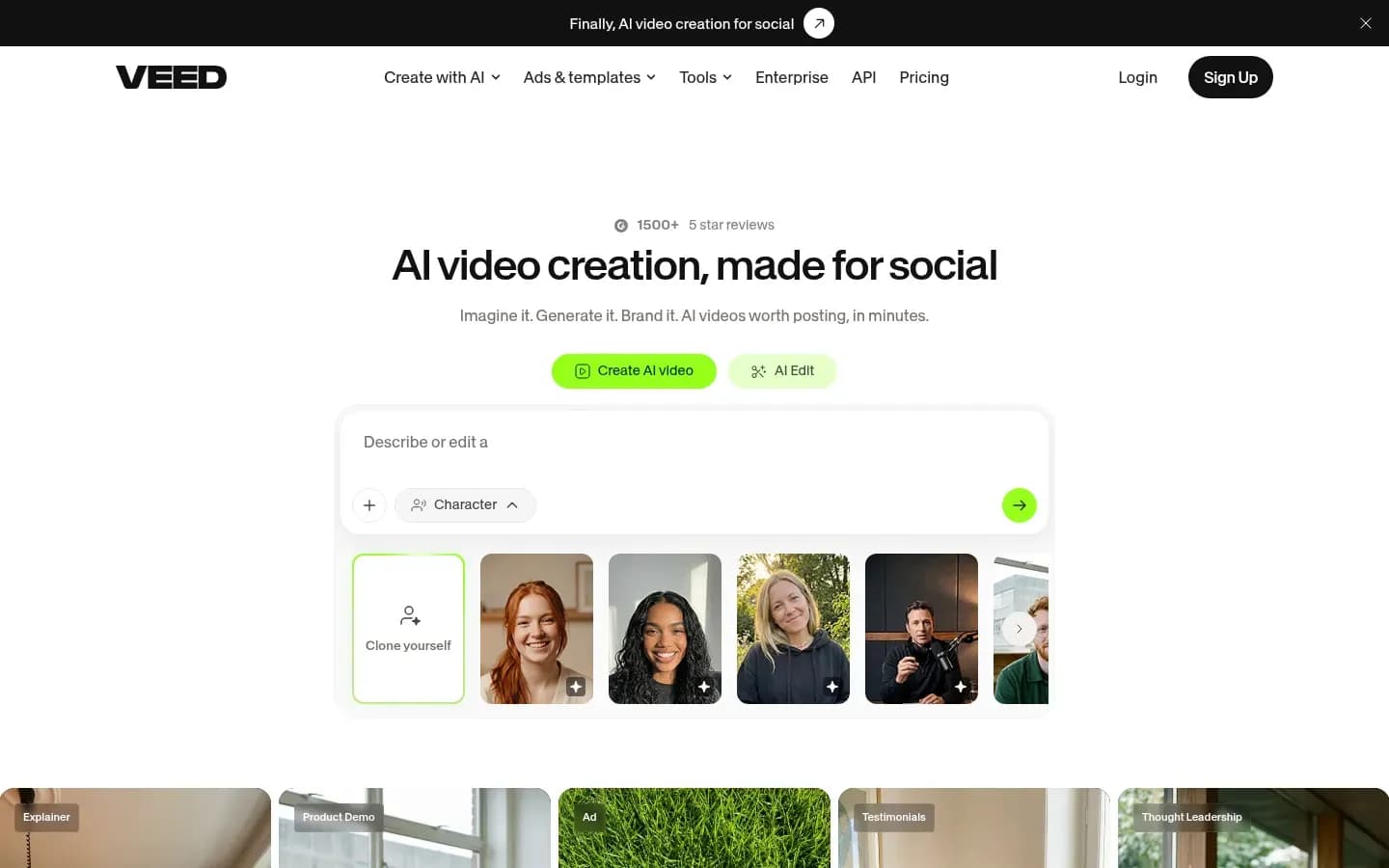
VEED states in its help centre that failed AI generations cost no credits, and its AI Playground shows each model's credit cost before you generate, which makes spend easier to predict for a small team.
Verdict: VEED ranks fourth because its strength is editing and subtitles, and AI generation is a useful extra rather than the main reason to buy.
What it does for a small budget: AI Playground generates video from text or an image with models including Google Veo 2, Veo 3 and Veo 3 Fast, Seedance, Minimax Video 01 and 02, Pixverse v4.5, Kling v1.6 Standard, Luma Ray and Lightricks LTX, all from one credit pool. A team that edits talking-head or screen footage can add an occasional generated clip without a second tool.
How spend is metered: Each generation uses AI credits at a model-specific cost that VEED shows before you generate. According to VEED, failed generations do not cost anything.
Unused allowance or credits: Unused credits do not carry over. On monthly plans they expire each month, and on annual plans they reset yearly. AI Playground is available on all plans, but free-plan AI credits exist only in some regions, with generations up to 12 seconds.
VEED pricing
| Plan | Price | Billing | Notes |
|---|---|---|---|
| Creator | $12 | per month, billed annually | per user |
| Pro | $22 | per month, billed annually | per user |
| Studio | $39 | per month, billed annually | per user |
| Enterprise | Custom pricing |
Best fit: Small teams whose main job is editing footage and adding subtitles, with AI clips as an occasional extra under a stated free-failure policy.
Pros
- Ease of use is the most frequent praise in reviews
- Credit cost per model is shown before generating
- Failed generations cost no credits, per VEED
- Capterra reviewers praise subtitles and transcription
Cons
- Reviewers report AI credits lost to failed generations
- Auto-renewal charges and refused refunds recur in reviews
- AI credit limits on lower tiers draw complaints
Limitations: Trustpilot reviewers praise VEED's ease of use but report bugs, AI credits lost to failed generations despite the stated policy, and auto-renewal charges with refused refunds. Critical Capterra reviews add AI credit limits on lower tiers, slow or failing uploads and exports, and lag in the editor.
CapCut, Best Free Starting Point For Social Edits
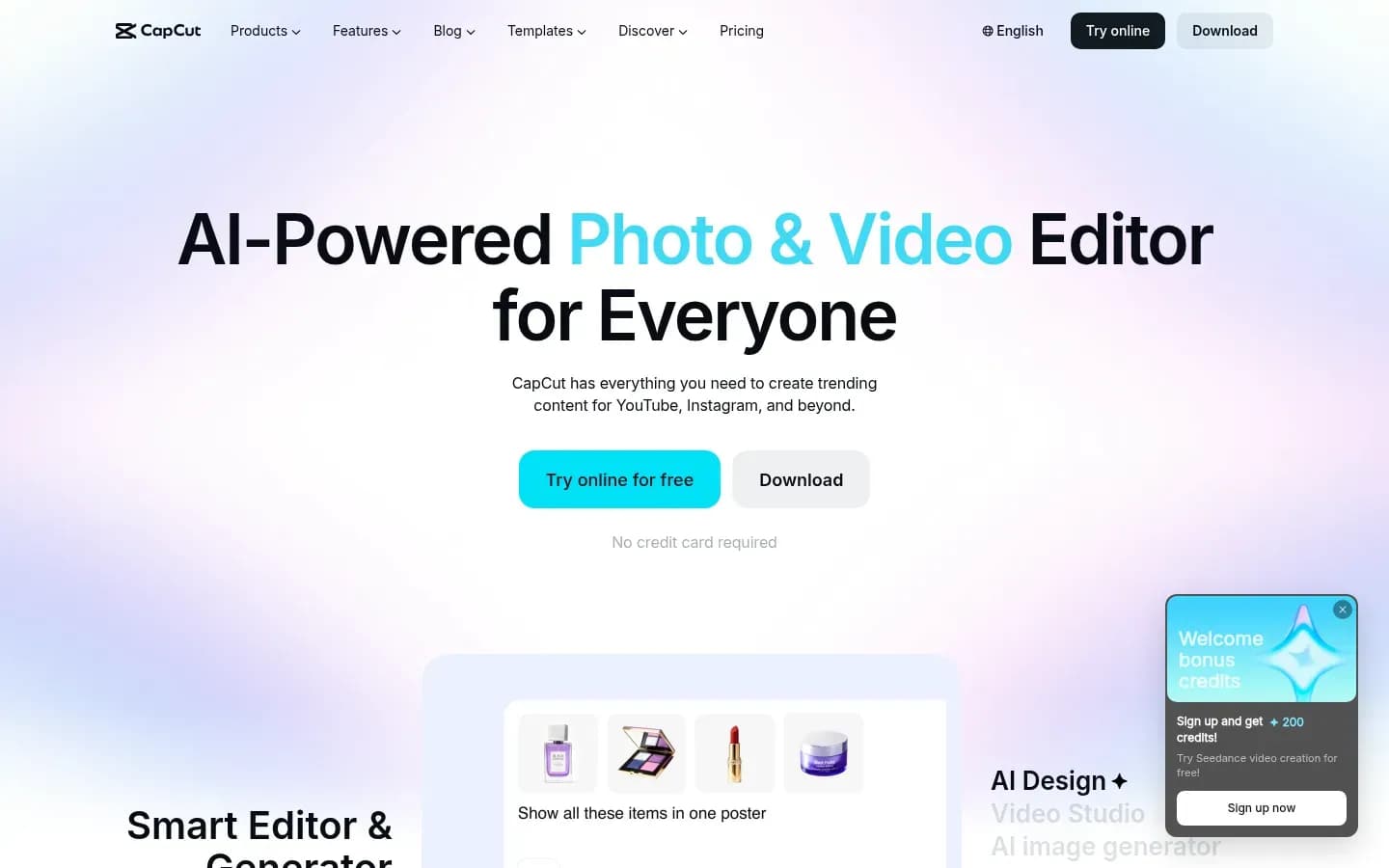
CapCut is a low-cost place to start editing social video, but its terms grant the company a worldwide, royalty-free, sublicensable and transferable licence over user content, so a business should read them before uploading client footage or brand assets.
Verdict: CapCut ranks fifth as a zero-spend way to start editing short social video with some AI generation, with licence and watermark catches a business must weigh.
What it does for a small budget: CapCut's own guide says its Seedance feature offers free daily credits, so a solo creator can generate some clips without paying. Editing short social and ad video is CapCut's core job, and AI generation sits on top of it.
How spend is metered: Advanced AI features, including AI Script-to-Video, are pay-per-use with credits. Watermark-free export depends on the features used and the app version. Templates may add an ending logo clip, and premium assets used on the free tier can add a watermark.
CapCut pricing
| Plan | Price | Billing | Notes |
|---|---|---|---|
| Free | $0 | per month | per user |
| Teams |
|
| per seat |
| Pro |
|
| per user |
| Ultra |
|
| per user |
Best fit: Solo creators and marketers making social edits who accept CapCut's content terms and check each export for watermarks.
Best for
- Solo creators making short social edits at zero spend
- Marketers testing AI generation with free daily credits
Not for
- Teams uploading client footage under strict content terms
- Brands that need guaranteed watermark-free exports
Limitations: The licence over user content covers voice, face and likeness. CapCut has said the clause is unchanged and applies only to the extent needed to provide the service. CapCut also went offline in the US on 19 January 2025 with TikTok and Lemon8 and returned about two days later. It remains available on US app stores, and the safeguards of the TikTok USDS joint venture, whose deal closed on 22 January 2026, extend to CapCut.
AI Video Pricing Comparison By What Each Tool Meters
An AI video pricing comparison only works on the meter, because Canva counts uses of a monthly allowance, Pika charges credits per clip by model, InVideo charges credits per second of output and VEED charges a model-specific credit cost per generation. CapCut adds free daily credits on one feature and pay-per-use credits for advanced AI.
The table sets out what each tool counts and what moves that count:
What each AI video tool meters
| Tool | What You Spend | What Changes The Cost |
|---|---|---|
| Canva | Uses of a shared monthly AI allowance | Premium versus Ultra tool |
| Pika | Credits per clip, by model | Model and resolution |
| InVideo | Credits per second, per seat | Model, resolution, audio and length |
| VEED | Model-specific credits per generation | Model chosen, shown before generating |
| CapCut | Free daily credits plus pay-per-use credits | Feature used |
Per second versus per clip: A per-second meter, as on InVideo, rewards short clips, because a shorter shot uses fewer credits on the same model. A per-clip meter, as on Pika's 5-second generations or VEED's per-generation costs, charges for the whole clip whether you keep two seconds or all of it, so plan shots that use the full length and trim in the edit. For a tool outside this list, a breakdown of Runway pricing turns each plan's credits into seconds of video.
Unused credits: The rules differ as much as the meters. Canva's allowance resets monthly on the billing date and Pika's plan credits refresh monthly, while InVideo plan credits and VEED credits do not carry over. Top-ups follow their own rules, with InVideo's extra credits lasting 12 months from purchase.
Reading a price page: Convert each plan into the clips you would actually keep. Take the monthly credits or uses, divide by what one clip on your preferred model costs, then divide again by the takes you usually need per kept clip. As an example, Pika Starter's 600 credits at 10 credits per H3 Flex clip give 60 clips, and if each kept clip takes two attempts, that is 30 usable clips. The takes figure is the one most price comparisons leave out, and it is the one only your own logs can supply.
How Do AI Video Credits Work?
AI video credits are vendor-specific units whose cost per clip rises with model, resolution, length and audio, so InVideo's help centre gives a quick Kling 2.6 Standard clip at about 5 credits and a Veo 3.1 4K clip with audio at over 100. A credit on one platform buys nothing comparable on another.
An allowance is not a clip count: The same plan buys very different numbers of clips depending on the model. Pika Starter's 600 credits cover about 60 Pika H3 Flex clips at 10 credits each, but only four full Seedance 2.5 clips at 720p, where each 5-second generation costs 122 credits. At 10 versus 122 credits per clip, that is a roughly twelvefold gap inside one plan.
Allowances reset: Canva's AI allowance resets monthly on the billing date, and Pika's plan credits refresh monthly. InVideo plan credits and VEED credits do not carry over, so what you do not spend in a cycle is gone.
Top-ups have their own rules: Pika's one-time packs work only in Pika Create and Pika MCP. InVideo's extra credits last 12 months from purchase, do not reset with the billing cycle and can be used only while the workspace is on a paid plan.
Some meters are not credits at all: Canva counts uses of Premium or Ultra AI tools rather than credits, and the clip tool draws on the Ultra allowance. That makes Canva easy to predict but hard to scale.
If you are new to the category, a primer on the three forms of AI video generation explains which kind of output each of these credits buys.
Do Failed AI Video Generations Cost Credits?
Only failures the vendor catches can be free, as VEED states for failed generations, while every rejected take that renders but misses the brief still uses credits, so retries set the real cost. Even a stated policy is not the whole story, because VEED reviewers on Trustpilot report AI credits lost to failed generations.
Failed versus rejected: A failed generation is one where the system errors and returns nothing usable. A rejected take renders as asked, but you discard it because the motion, framing or message misses the brief. VEED's stated policy covers the first case, while the second always uses credits on a credit meter.
What reviewers report: Pika reviewers on Trustpilot describe the same problem, reporting credits deducted during failed generations and output that ignores prompts. For a small budget, both failed and rejected takes come out of the same monthly pool.
Retries are where a small budget leaks, so cut them before they happen:
Log every take: In the first month, record each generation, whether it was kept and which model made it. That log shows which models and prompt styles waste credits, and it gives you the takes-per-kept-clip figure that sizes your plan.
A guide to writing tighter prompts for AI video covers subjects, camera, motion and iteration cost, which is where most avoidable retries start.
How Much Does AI Video Cost Per Month?
A small team's monthly AI video cost is its plan plus any top-ups, and both are driven by how many clips it wants and how many takes each kept clip needs. Because InVideo plan credits and VEED credits expire at the end of each cycle, buying for your median month and topping up wastes less than an oversized plan.
Three budget situations cover most small teams, and the pricing table in each tool's section shows what each plan costs:
Monthly AI video budget situations by volume
| Situation | Plan To Start With | Credit Arithmetic | When You Need More |
|---|---|---|---|
| A handful of clips a month | Canva Pro | Up to 20 Ultra uses | AI Pass add-on |
| A few dozen short generated clips | Pika Starter | About 60 H3 Flex clips | Credit packs |
| Several finished marketing videos | InVideo Plus | 2,000 credits per seat | Extra credits from $5 |
A handful of clips: Canva Pro suits a marketer who needs a few short clips a month to sit inside designs already made in Canva. The allowance is shared, so heavy use of other Ultra tools leaves fewer clips.
A few dozen short clips: Pika Starter covers about 60 H3 Flex clips as worked arithmetic on its 600 credits. If a month runs over, a 1,500-credit pack costs $25 and adds about 150 more H3 Flex clips.
Several finished videos: InVideo Plus gives 2,000 credits per seat for scripted, edited videos with stock and generation. Extra credits start at $5 and last 12 months, so they cover a busy month without a plan upgrade.
Buy for the median month: InVideo plan credits and VEED credits do not carry over, so credits bought for a peak month and left unused are lost. Size the plan for a typical month and top up for spikes with Pika packs or InVideo extra credits.
Measure your own retry rate: In the first month, log how many takes each kept clip needed, then size the plan from that figure rather than from a vendor's clip estimate. When you test ads, change one element per version, and a playbook on AI video ad variations that test one thing at a time shows how that keeps both takes and credit spend down.
Can You Use Free AI Video Plans For Business Content?
A free AI video plan is risky for business content when its licence or watermark rules exclude commercial use, as Pika's free plan does, and ownership is limited too, as law firm Sidley Austin's summary of the US Copyright Office's January 2025 report says purely AI-generated material from prompts is not copyrightable.
Each free plan in this list has its own catch:
- Pika: Free output carries no watermark but has no commercial licence, while paid plans include one.
- CapCut: Watermark-free export depends on the features used and the app version, and its terms grant CapCut a broad licence over uploaded content.
- Canva: Canva Free has no access to Ultra AI tools, which include the video clip tool.
- VEED: Free-plan AI credits are offered only in some regions, with generations up to 12 seconds.
Who owns the output: The same Copyright Office report found that perceptible human expressive input and sufficiently creative selection, arrangement or modification of AI output can be protected, according to a summary by law firm Sidley Austin. Editing, cutting and combining clips into a finished video therefore matters for ownership as well as quality.
This section is general information, not legal advice.
Which AI Video Tool Should You Choose For Your Budget?
If you already pay for Canva and need only a few clips a month, use Canva Pro's allowance, and if you need dozens of short generated shots, Pika's own fast models such as H3 Flex keep the credit cost per clip low. InVideo, VEED and CapCut each fit a narrower situation, set out below.
- Already on Canva, a few clips a month: Choose Canva Pro and use its AI allowance before buying another tool.
- Dozens of short shots for social or ads: Choose Pika and keep most generations on H3 Flex or Pika 2.5.
- Finished marketing videos for a team of up to five: Choose InVideo for stock, editing and generation per seat, and use the dry run to check each price.
- Editing talking-head or screen footage with subtitles: Choose VEED for editing first, with occasional AI clips under a stated free-failure policy.
- Solo creator testing on free daily credits: Choose CapCut if its content licence is acceptable for what you upload.
When to move up a plan: If you buy top-ups most months, compare the next plan's credits with what the packs cost you over the same period. If credits regularly expire unused, drop a plan and rely on top-ups instead.
If your question is team review and disclosure rather than spend, a shortlist of AI video tools for B2B marketing teams ranks tools by those jobs.
Frequently Asked Questions
Is there a free AI video generator with no watermark?
Pika's free plan exports without a watermark but carries no commercial licence, so it suits testing prompts, not publishing business content. CapCut's free tier can also export without a watermark, but that depends on the features used and the app version, and templates may add an ending logo clip.
Is CapCut still available in the US?
Yes. CapCut went offline in the US on 19 January 2025 together with TikTok and Lemon8 and returned about two days later. It remains available on US app stores, and the TikTok USDS joint venture, whose deal closed on 22 January 2026, extends its safeguards to CapCut.
Who owns the copyright in an AI-generated video?
Under the US Copyright Office's January 2025 report, purely AI-generated material made from prompts is not copyrightable. Human expressive input and creative selection, arrangement or modification of AI output can be protected, so editing and combining clips strengthens a business's claim. This is general information, not legal advice.
Can a small team share one AI video plan?
It depends on the tool. InVideo plans add seats, each with its own monthly credits, and Starter supports up to 5 seats. Canva Business gives each member an individual AI allowance that is not pooled, so one member's unused uses cannot cover a colleague's video clips.
Sources
Sources
- Video Marketing Statistics 2026 · wyzowl.com
- Google's Veo 3 video model is now live in Canva · tomsguide.com
- Pika Reviews | Trustpilot · trustpilot.com
- Popular video editing app CapCut made some changes to its T&C · techradar.com
- VEED Reviews | Trustpilot · ca.trustpilot.com
- VEED Reviews | Capterra · capterra.com
- Canva AI access · canva.com
- Canva pricing · canva.com
- U.S. Copyright Office Issues Report on Artificial Intelligence and Copyrightability · datamatters.sidley.com
- Is CapCut Banned in the US? The Full 2026 Timeline · miracamp.com
- Pika pricing · pika.art